


Question:
How do I create an external File Connection?
Solution:
In a local DocuWare installation, it is possible to specify a storage location containing external files for use in select lists and Autoindex jobs. Please refer to the following guide to create an external File Connection:
1. Open DocuWare Server Manager and create a new storage location. To do so, go to Storage Locations and click the “+” button: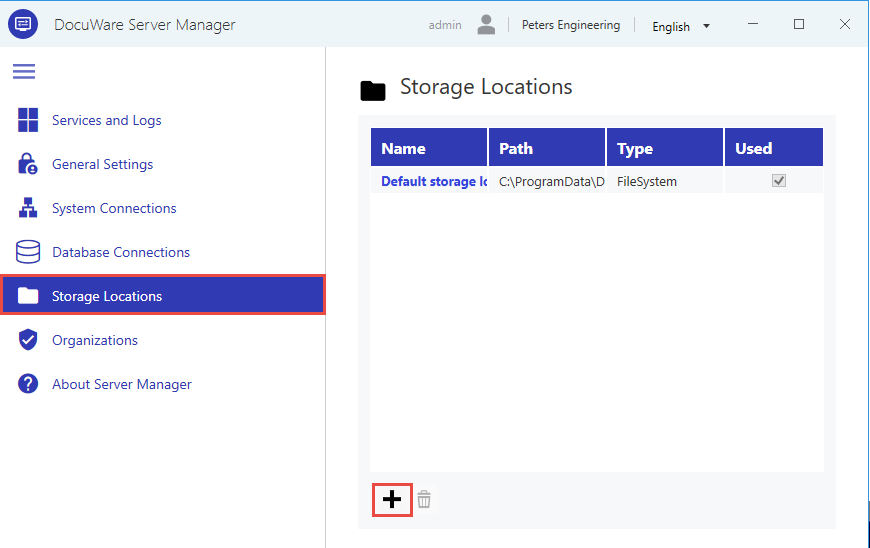
2. Click the Used checkbox. Then, define the values for Name and Path. Select the File Connections checkbox as well, then click Save: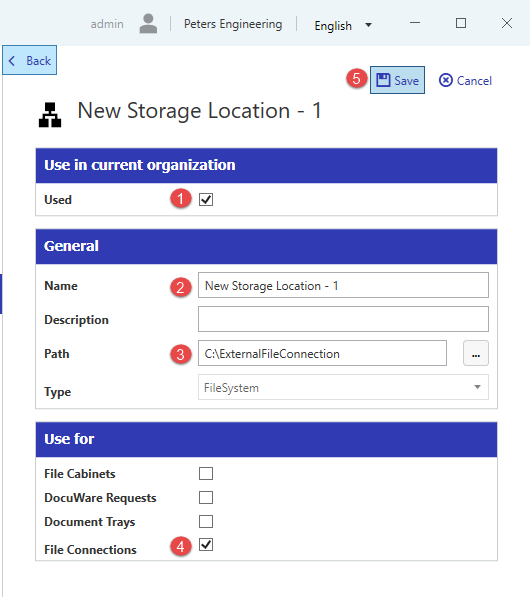
3. Place your files in this new location. Once completed, navigate to the web client and go to the File Connections plugin via the Configurations page: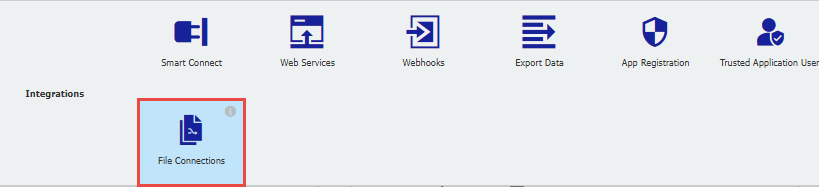
4. Click New File Connection
5. Configure the file connection to your needs. In this example, we will be choosing the new Storage location, the File name, then configuring the delimiter, Row number of column header, and Start extraction at row. Then, click Save to identify the file connection configuration: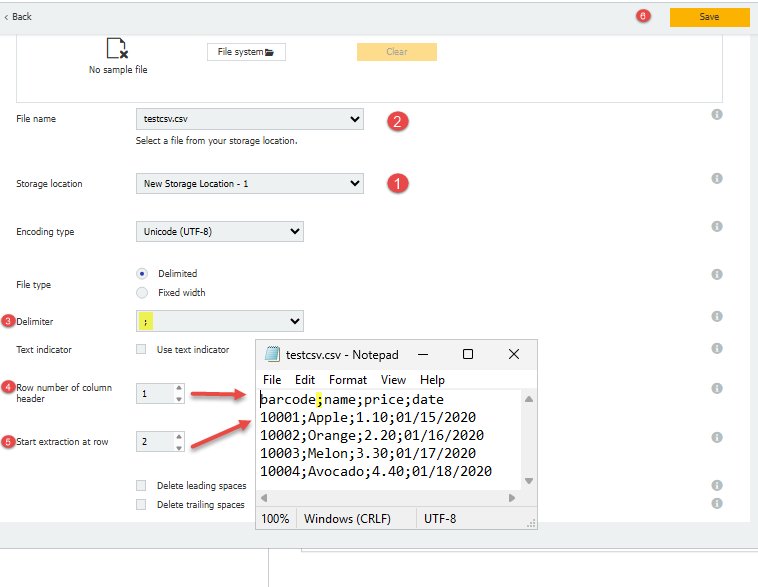
6. Click the Columns tab to see how the connection was identified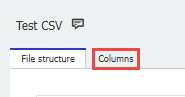
7. You will now see your configured File Connection in Indexing Assistance, Workflow Designer, and Autoindex modules. You are able to change the title of each column, as well as the type (text, numeric, date, etc..):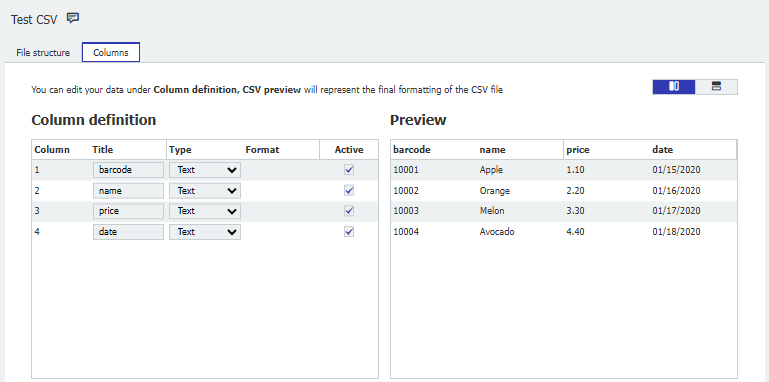
KBA is applicable for On-premise Organizations ONLY.