


Overview:
Comencing in DocuWare 7.13, the Central Gateway configuration was removed and replaced with two settings within the Security configuration plugin. The following guide will explain where to find these new settings, as well as what both configurations can achive.
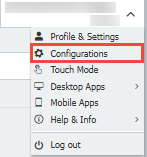
- In the web client, click the dropdown in the top-right corner, and select Configurations.
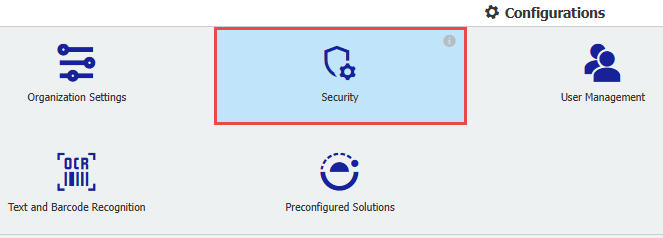
- From the Configurations page, select Security.
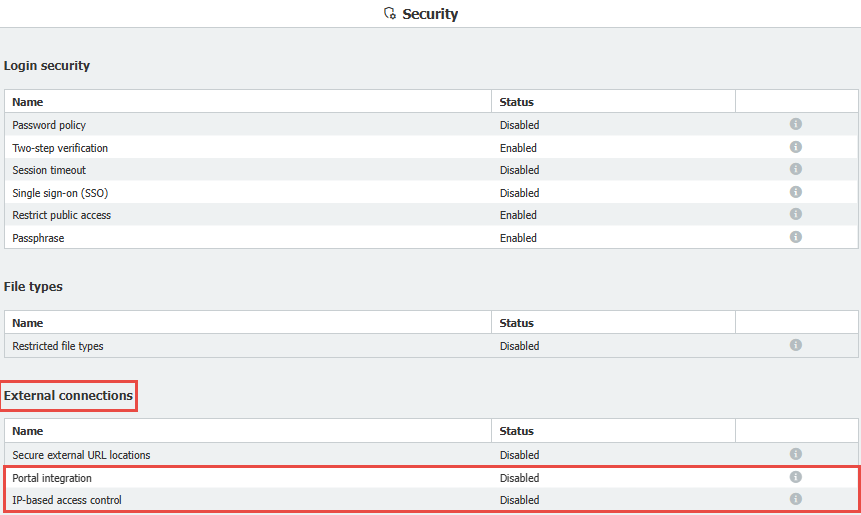
- Upon entering the Security configuration, you will see two new options under External Connections. These options are Portal integration and IP-based access control.
Portal integration (Previously: Domains)
Previously shown as Domains in Central Gateway settings, Portal integration controls which websites can access your DocuWare installation's resources, helping prevent unauthorized or malicious web applications from interacting with your data. Only domains you add here will be able to access DocuWare resources of your organization. For example, if a DocuWare search dialog should be embedded in your web portal, so that customers may search documents in DocuWare, the domain of your web portal must be added here. If a domain is not listed, its web portal will be blocked from embedding elements such as forms, result lists, dialogs, and others.
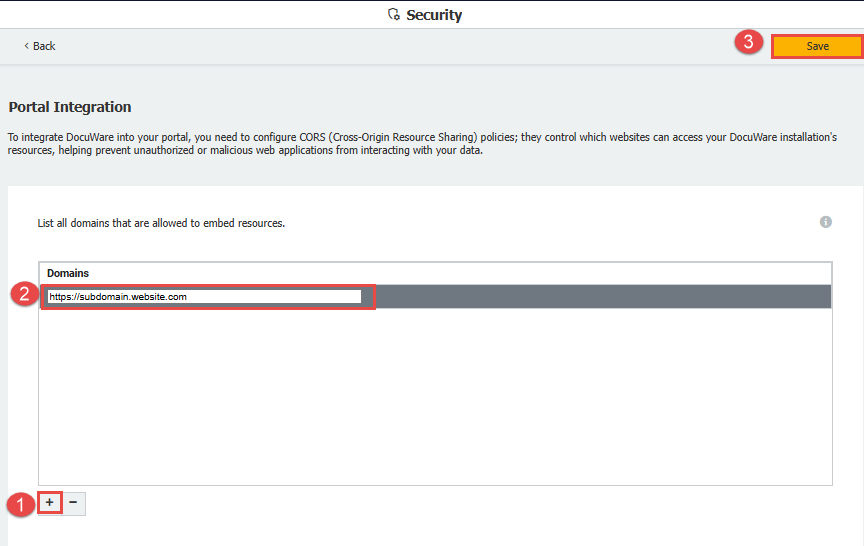
To enable which domains are allowed to embed resources in your organization, enter the domain in the required format “https://subdomain.website.com” or “http://subdomain.website.com”. Click the + button, then enter the domain in the Domains box, and click Save:
Note: Wildcard entries (e.g., *.website.com) are not allowed
IP-based access control (Previously: IP Addresses):
Previously shown as IP Addresses in Central Gateway settings, IP-based access control allows you to specify which devices or networks can access your system, blocking unwanted or potentially harmful traffic from unknown sources. The IP-based access control section is only visible for organization administrators of DocuWare Cloud.
Users may only access a DocuWare Cloud organization via the IP addresses entered in the central gateway. This allows organizations to control which devices can access their services, preventing unauthorized access. Enter specific IP addresses or ranges of IP addresses from which the DocuWare Cloud services should be accessible. For example, you can restrict access so that only employees connecting from your corporate network can use DocuWare.
Note: As long as no IP address is listed here, all IP addresses have access to the DocuWare Cloud Organization. However, if one IP address is entered, the access control takes effect and only the addresses specified here have access to the Cloud Organization.
Please refer to the following guide on how to enable IP-based access control:
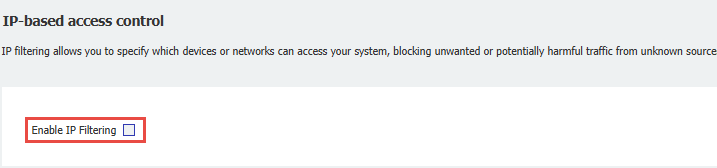
- Before adding an IP Addresses or ranges, you must select Enable IP Filtering:
- Once enabled, click Add your IP Address as it is required before you list any other IP addresses:
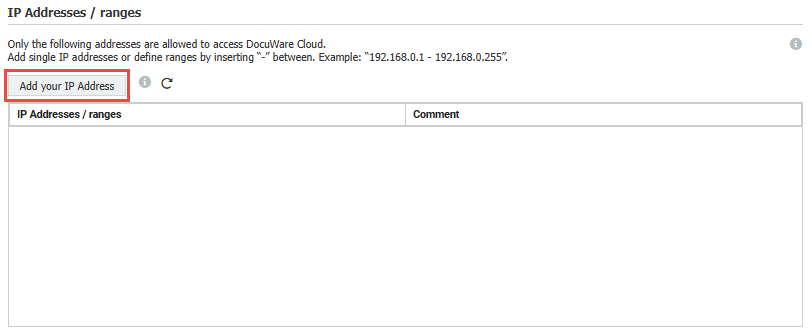
- Upon adding your IP Address, you are able to start adding any other IP addresses or ranges. If you would like to add a range, it must be defined by “-” in the following format:
192.168.0.1 - 192.168.0.255 - Once you have completed this, press save, and your changes will take effect immediately.
KBA is applicable to Cloud Organizations ONLY!