


Question:
How do I create an XPath expression to retrieve specific user information from an XML file containing user data, such as name, email, address, and active status?
Answer:
XPath expressions can be written to target each specific field within the <user> node. The following examples retrieve the information for the user with id="1".
Explanation of XPath Structure:
• Double slashes (//) searches through the entire XML document.
• Expression user [@id="1"] identifies the user node with attribute id="1".
• The final segment (such as /name or /city) specifies the exact element to retrieve.
Example:
//user[@id='1']/address/city → Returns 'Springfield'.
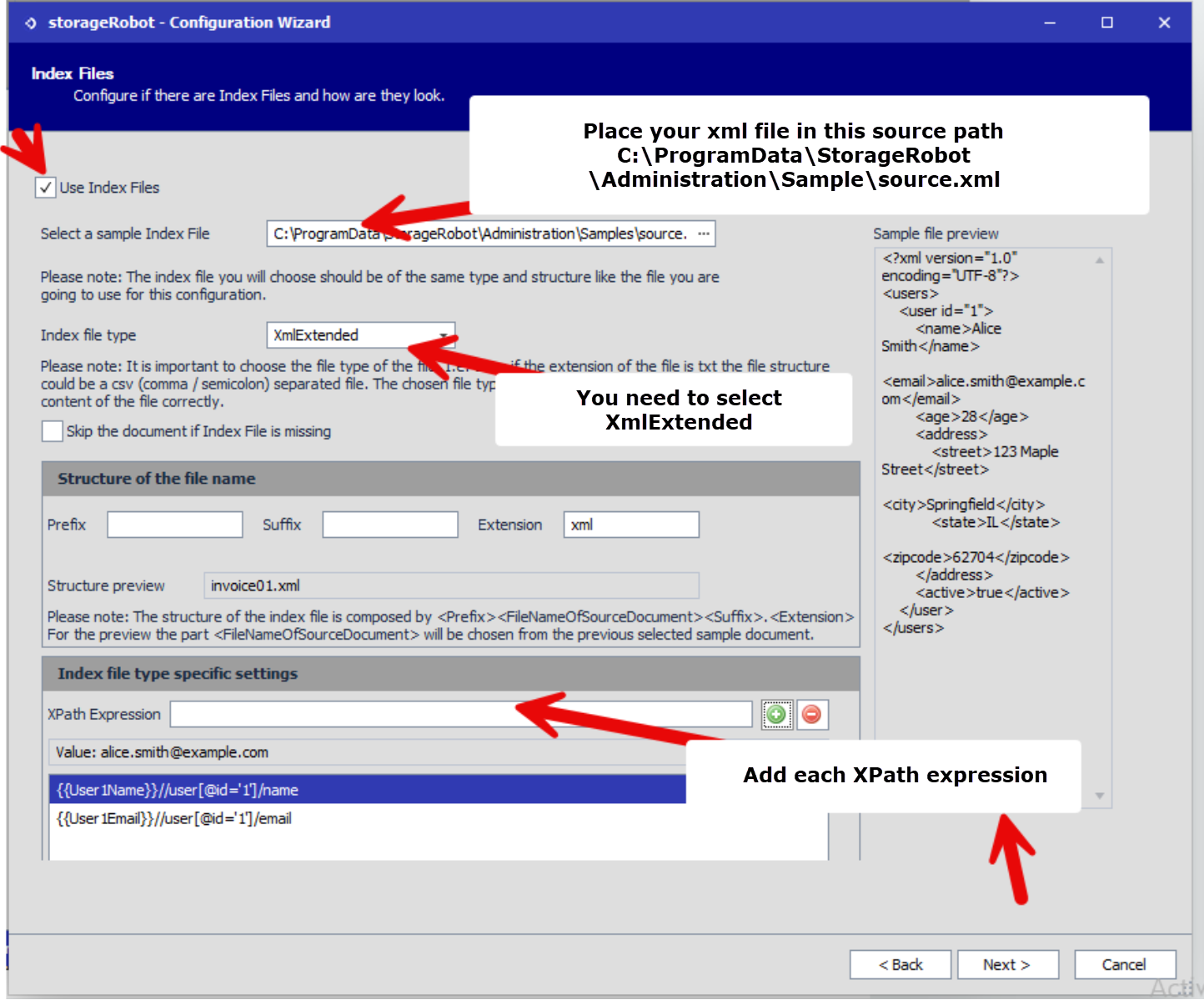
To configure your Index files, please refer to the following steps:
- Enable the use of index files.
- Place your XML file in the sample Index File source path.
- Configure the index file type to XmlExtended.
- Add your desired XPath expressions.
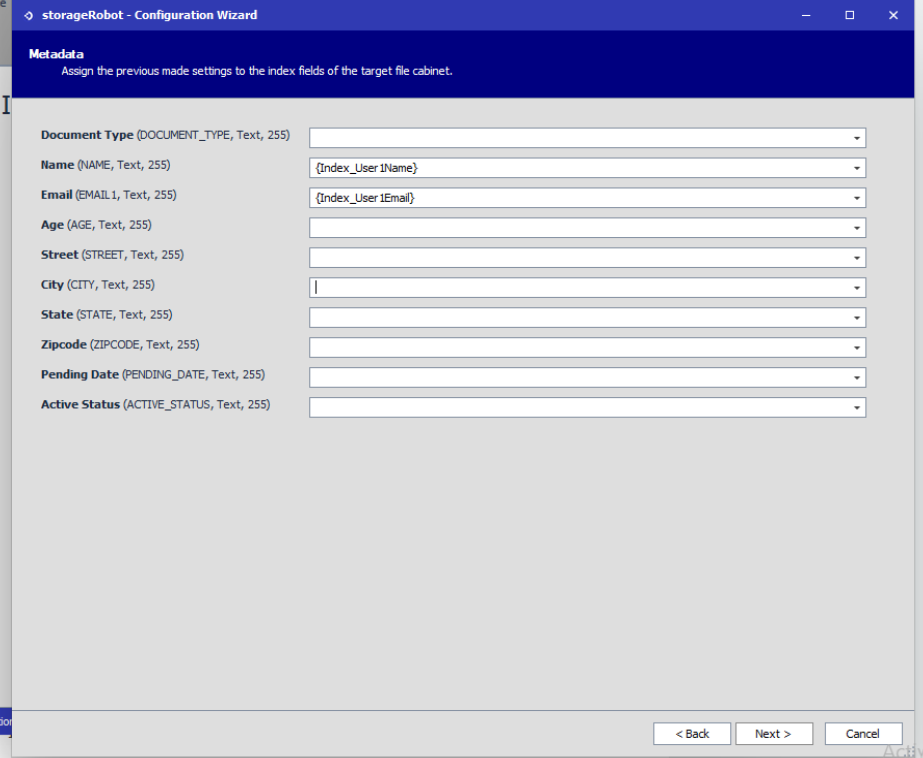
After clicking next, assign the meta data of the document of the values you input.
KBA applicable for both Cloud and On-premise Organizations.