


Question:
How do I change the DocuWare Web Client logo?
Answer:
As part of the breaking changes noted in DocuWare version 7.11, changes in Platform Service configuration files were implemented.
As a result of the change, please follow the steps outlined in this article to update the DocuWare Web Client logo for versions 7.11 and higher.
Procedure for a single organization (Default):
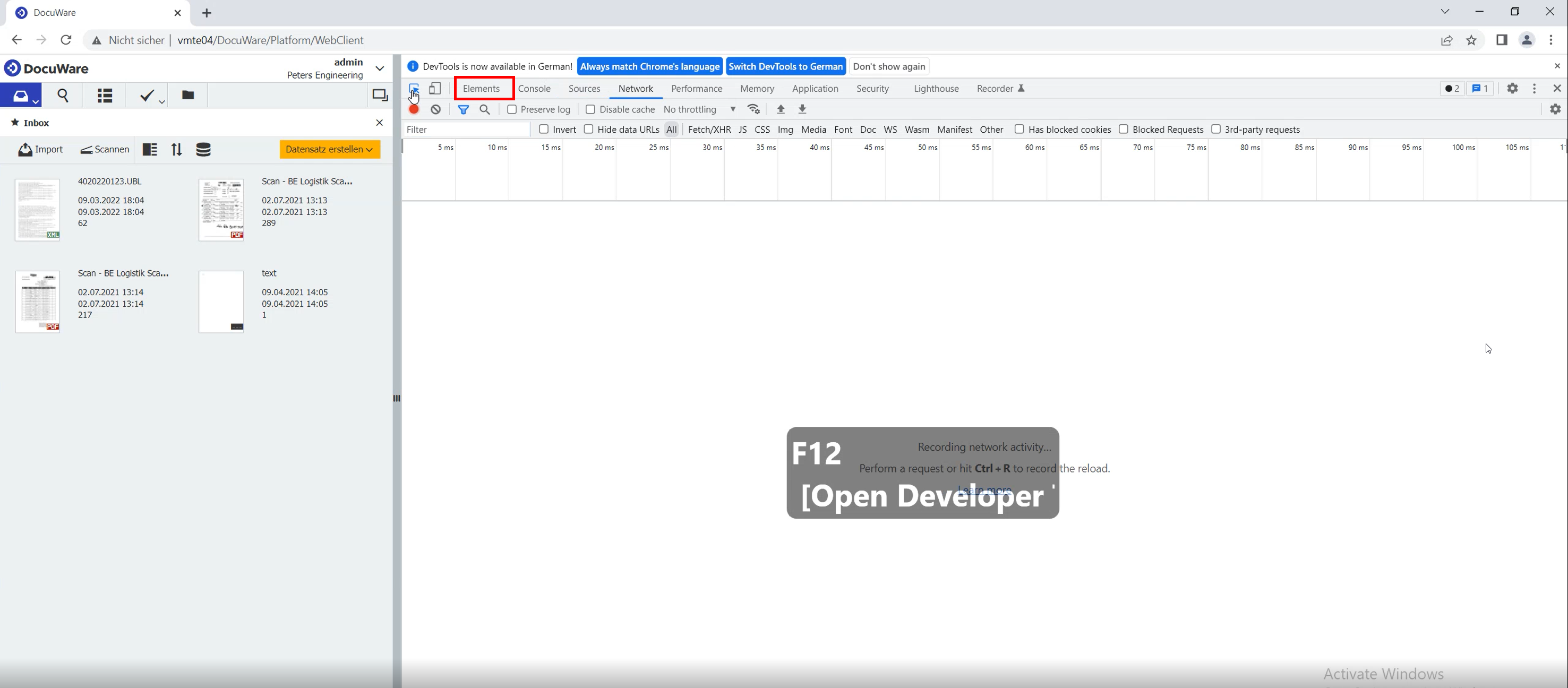
1. Login to the DocuWare Web Client and press F12.
Navigate to C:\Program Files\DocuWare\Web\Platform\wwwroot\Content (or the drive where your DocuWare installation is on)
and make a copy of the “custom.css.template” file.
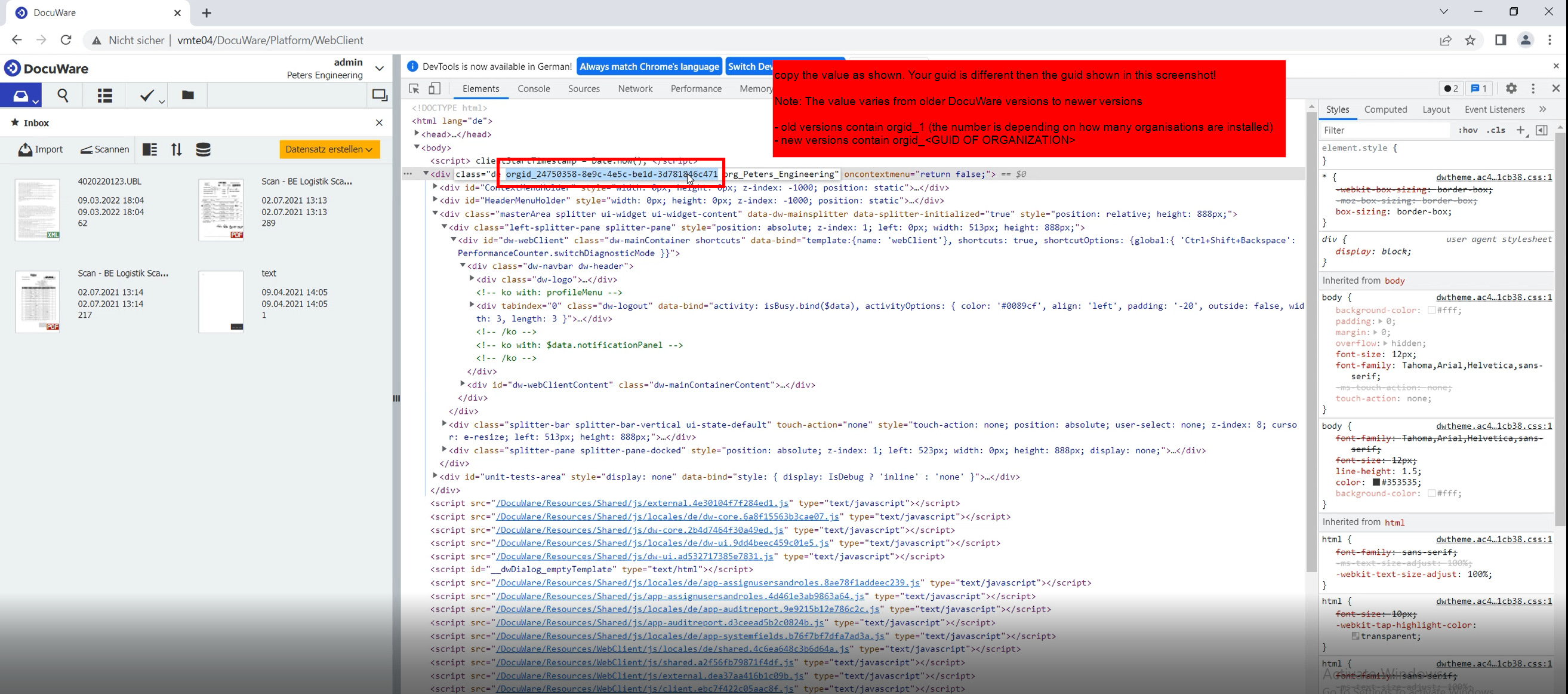
2. The developer console will open. Select the Elements tab and expand the <body> element. Beneath you can find a div with a class.
Copy the orgid value and save it for later.
3. On the server where DocuWare Platform Service is installed, open the folder
…\DocuWare\Web\Platform\wwwroot\Content
4. Place your logo (PNG or SVG format supporting transparency only)
5. Backup the file custom.css.template
6. Rename the file custom.css.template to custom.css
7. Open the custom.css file and change the selectors. Example:
Original:
body.org_Peters_Engineering #loginBox,
div.orgid_1.org_Peters_Engineering .dw-logo {
background-image: url( peters_engineering.svg') !important;
background-repeat: no-repeat;
background-size: 140px 25px;
}
Adjusted:
body.orgid_24750358-8e9c-4e5c-be1d-3d781846c471 #loginBox,
div.orgid_24750358-8e9c-4e5c-be1d-3d781846c471 .dw-logo {
background-image: url( custom_logo.svg') !important;
background-repeat: no-repeat;
background-size: 108px 22px;
}
8. Save the file and perform an IISRESET from CMD and your customization should be present on the login screen.
For how to correctly reset IIS, please follow KBA-34532
KBA is applicable for On-Premises Organizations ONLY.