


DocuWare version 7.7. introduced a new Fulltext solution, with some changes in functionality and structure. For more details, please see: KBA-37227
With the introduction of the new Fulltext solution, there are new behaviors/challenges you can encounter.
This article will compile the most common behaviors DocuWare Support has observed and propose solutions to them.
In the logs, you see the following message: DocuWare fulltext server could not be started. System.TimeoutException: Java process didn't start in timely manner.
- Ensure that the user running the Fulltext Service has full read/write access to the Fulltext Index folder (you can view this in the Admin tool > Data connections, or DocuWare Server manager > System Connections) and the Fulltext Server Installation path, by default it will be located at C:\Program Files\DocuWare\Fulltext Server (x64).
- The port 9012, which the Fulltext uses, could be taken up by another process. To check whether this is the case, enter the command netstat -ano in the command prompt. The output will also include the ‘PID’, which you can use in Task Manager under ‘Details’ to track the process using the port.
- The "javaPath" value in DWSolrService.exe.settings file could be pointing to an incorrect directory. For this behavior, please check the following KBA: KBA-37326
Encountering an error when trying to perform a Fulltext search:
You are trying to perform a Fulltext search in a file cabinet and the following error is returned: The remote server returned an error: (500) Internal Server Error
In addition, you see the following error in the logs and Solr-Administration: org.apache.solr.common.SolrException:org.apache.solr.common.SolrException: Error opening new searcher
This information indicates that something is wrong with the SolrCore for the corresponding file cabinet. In the installation path of Fulltext (the default path would be C:\Program Files\DocuWare\Full-Text Server (x64)\solr\server\solr), you can see the cores within folders named after the GUID of the corresponding file cabinet. Each file cabinet has its own core. In the folder from a file cabinet, there should be a file named 'core.properties'. If the core is corrupt or damaged, the file may be missing or may not contain the correct data.
Here you can see an example of a healthy 'core.properties' file: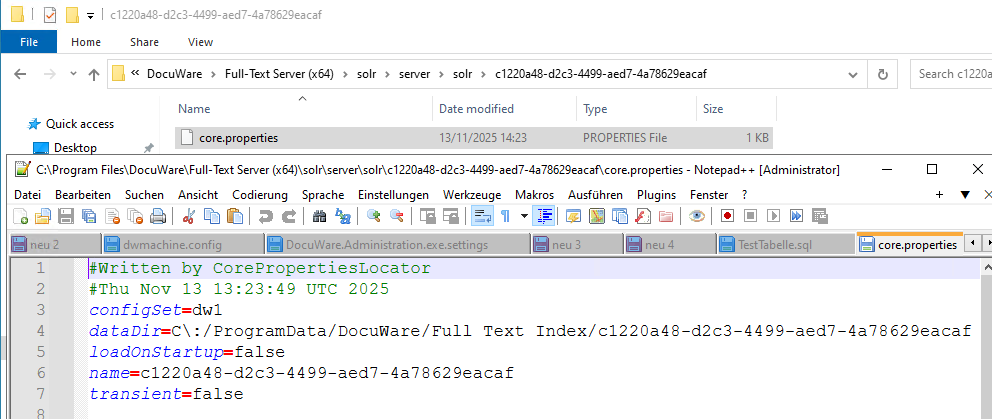
How to fix a missing or corrupt core:
Note: Please back up the files before deleting them.
- Stop the Fulltext service and give the user who runs the Fulltext service change-rights to the FulltextServer(x64) folder: C:\Program Files\DocuWare\Full-Text Server (x64)
- Do the same with the Fulltext Index folder (you can view this in the Admin tool > Data connections, or DocuWare Server manager > System Connections).
- Delete the contents of the Fulltext Index folder of the corresponding file cabinet, which is also named after the GUID.
- Head into the directory 'C:\Program Files\DocuWare\Full-Text Server (x64)\solr\server\solr\' and delete the folder with the GUID of the affected file cabinet.
- Start the Fulltext service and check whether the core is created correctly again.
- After all the previous steps have been done, you will need to trigger a Fulltext reset for the file cabinet via the second reset option.
Note: advise not to run multiple Fulltext resets at the same time, as this could lead to performance issues of your system.
Issues when Fulltext is installed on a dedicated Server:
When performing a Fulltext search, the error message: The object reference has not been set to an object instance appears.
In the DocuWare.BackgroundProcessService.LongLiving.GenericProcess.log, you see the following message:
<message>Unexpected exception occurred in DocuWare.BPS.Processes.FCDocumentBackgroundTasks.TaskProcessors.DocumentFulltextTaskProcessor and File Cabinet with guid: 11111111-2222-3333-4444-555555555555</message><exception>System.Net.WebException:The connection to the remote server cannot be established. ---> System.Net.Sockets.SocketException: A connection attempt failed because the remote host did not respond correctly after a certain period of time, or the connection established was faulty because the connected host did not respond 192.168.100.100:9012
This indicates that the server cannot connect to the Fulltext Server. Here, you would need to check whether the servers can reach each other, for example, by pinging them in the command prompt. It is possible that firewall or antivirus program settings block the request.
KBA is applicable to On-premise Organizations ONLY.