


動作:
Windows Explorerクライアントから文書を保存した後、Connect to Outlookを使用して電子メールを保存しようとすると、保存ダイアログページが開くがフリーズする。この動作は、Connect to Outlookを使用して電子メールを保存した後、Widows Explorer Clientを使用して文書を保存しようとした場合にも発生します。
解決方法:
この動作が発生しているユーザーのマシンから、以下のガイドを完了してください;
Windows Explorerクライアントから文書を保存した後、Connect to Outlookを使用して電子メールを保存しようとすると、保存ダイアログページが開くがフリーズする。この動作は、Connect to Outlookを使用して電子メールを保存した後、Widows Explorer Clientを使用して文書を保存しようとした場合にも発生します。
解決方法:
この動作が発生しているユーザーのマシンから、以下のガイドを完了してください;
- DocuWare Desktop Appsを終了し、DocuWare Desktop Serviceを停止します。
- C:¥Program Files¥DocuWare¥Windows Explorer Clientに 移動して、DocuWare.PlatformUI.dll.settings ファイルを開きます。
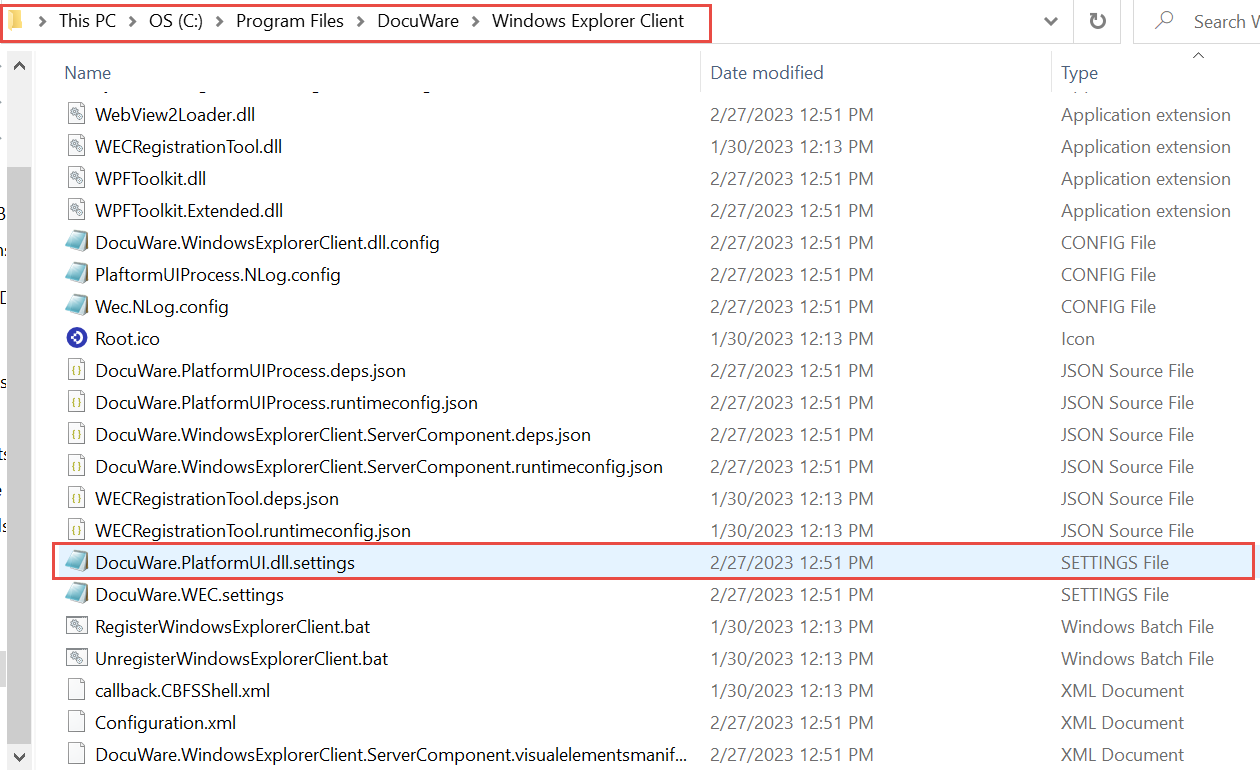
- RestartMode を "Persistent" から "StopAndRestart" に変更します。
注意:変更する前に DocuWare.PlatformUI.dll.settings のバックアップを取ってください。
Before
<?xml version="1.0"?>
<PlatformUISettings xmlns:xsd="http://www.w3.org/2001/XMLSchema" xmlns:xsi="http://www.w3.org/2001/XMLSchema-instance">
<RestartMode accepted_values="Persistent, StopOnly, StopAndRestart">
<Value>Persistent</Value>
</RestartMode>
</PlatformUISettings>
後
<?xml version="1.0"?>
<PlatformUISettings xmlns:xsd="http://www.w3.org/2001/XMLSchema" xmlns:xsi="http://www.w3.org/2001/XMLSchema-instance">
<RestartMode accepted_values="Persistent, StopOnly, StopAndRestart">
<Value>StopAndRestart</Value>
</RestartMode>
</PlatformUISettings> - C:¥Program Files (x86)¥DocuWare¥Connect to Outlookに移動し、DocuWare.PlatformUI.dll.settings ファイルを開いてください。
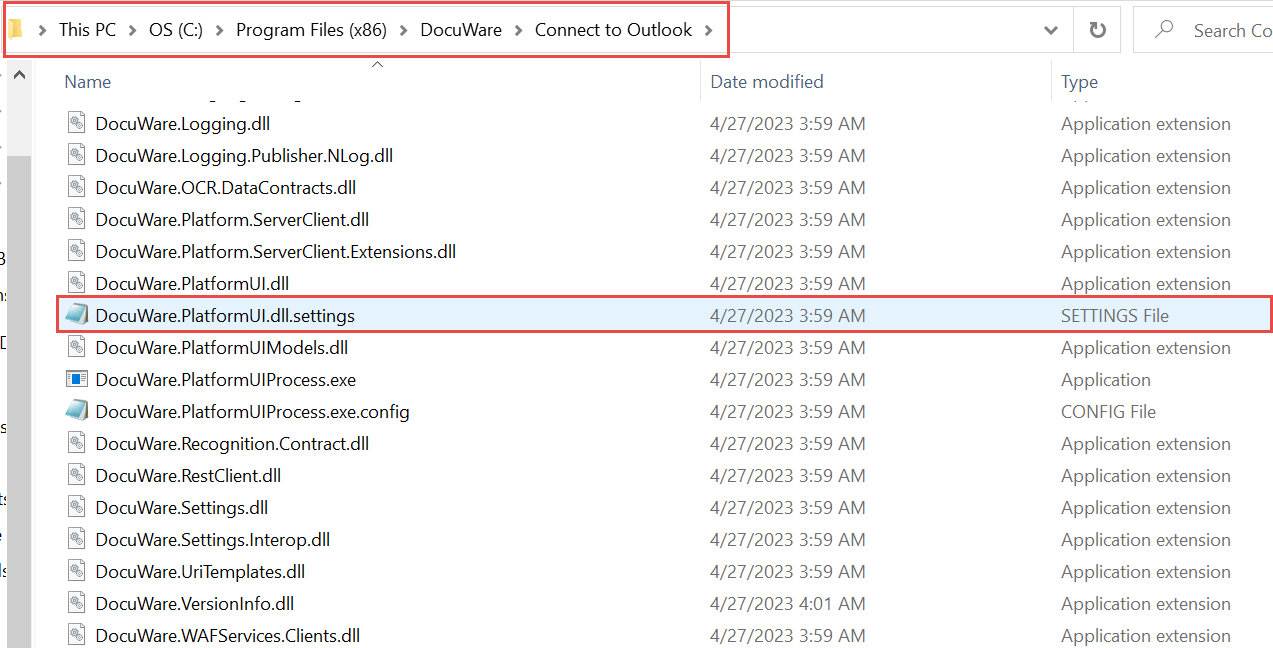
- RestartModeを "Persistent" から "StopAndRestart" に変更します。
注意:変更する前に DocuWare.PlatformUI.dll.settings のバックアップを取ってください。
前
<?xml version="1.0"?>
<PlatformUISettings xmlns:xsi="http://www.w3.org/2001/XMLSchema-instance" xmlns:xsd="http://www.w3.org/2001/XMLSchema">
<RestartMode accepted_values="Persistent, StopOnly, StopAndRestart">
<Value>Persistent</Value>
</RestartMode>
</PlatformUISettings>
後
<?xml version="1.0"?>
<PlatformUISettings xmlns:xsi="http://www.w3.org/2001/XMLSchema-instance" xmlns:xsd="http://www.w3.org/2001/XMLSchema">
<RestartMode accepted_values="Persistent, StopOnly, StopAndRestart">
<Value>StopAndRestart</Value>
</RestartMode>
</PlatformUISettings> - DocuWare Desktop Serviceを再起動し、Desktop Appsを起動します。 完了すると、Connect to OutlookやWindows Explorer Clientで保存する際に、さらにフリーズが発生 することはなくなります。
KBAは、クラウドとオンプレミスの両方の組織で適用できます。
ご注意:この記事は英語からの翻訳です。この記事に含まれる情報は、オリジナルの英語版製品に基づくものです。翻訳版の記事で使用されている文法などには、細かい誤りがある場合があります。翻訳の正確さを完全に保証することは出来かねますが、ほとんどの場合、十分な情報が得られると思われます。万が一、疑問が生じた場合は、英語版の記事に切り替えてご覧ください。