


Question:
How can I reset Fulltext indexes within DocuWare version 7 or higher?
Solution:
Please refer to the following guide on how to reset Fulltext indexes in DocuWare;
For DocuWare versions 7-7.3:
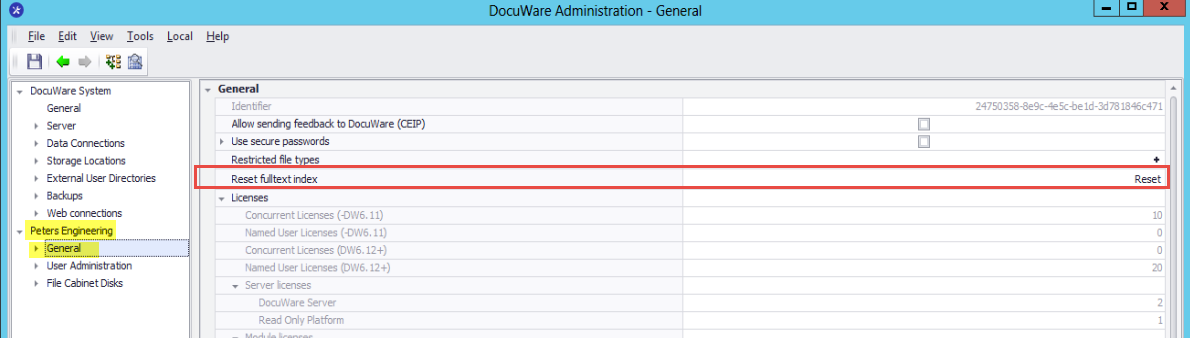
- To reset Fulltext indexes for versions 7-7.3, you can find this option in the DocuWare Administration Tool under Organization -> General -> Reset fulltext index:
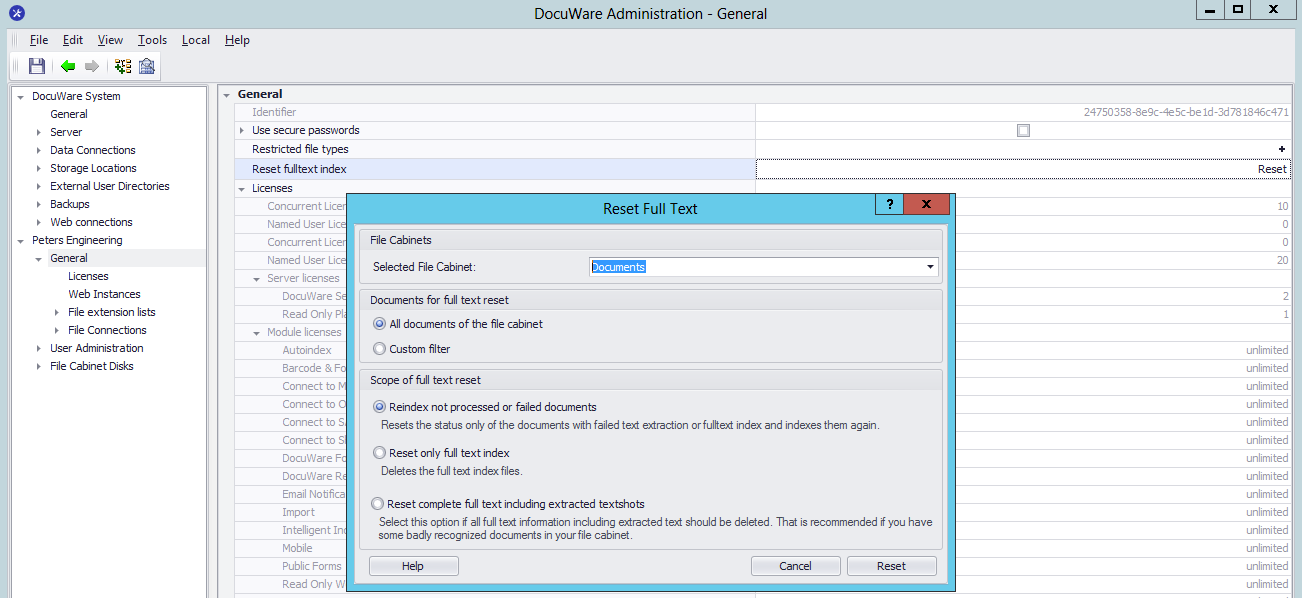
- From here, select the file cabinet for which the reset should apply, and if the reset should be done for all documents or only for particular documents using the custom filter:
For DocuWare versions 7.4 - 7.14
For DocuWare versions 7.4 - 7.14, the option to reset Fulltext indexes is found in the file cabinet where you wish the reset to take place.
- Open the configurations page in the DocuWare Web Client and select the File Cabinets plugin. Once you have reached the File Cabinets page, select the file cabinet for which you wish to reset the Fulltext indexes, then select More Options.
Note: Please keep in mind for larger file cabinets, re-indexing may take a long time.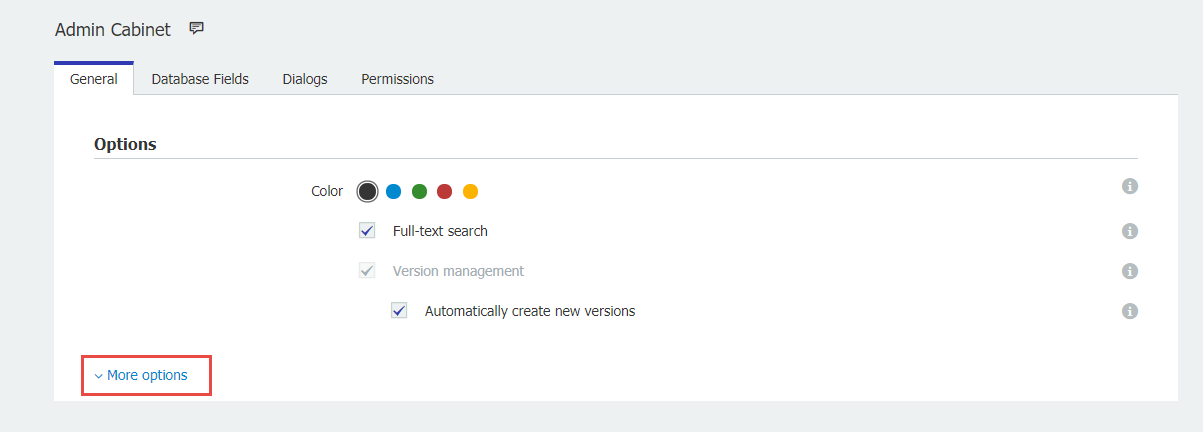
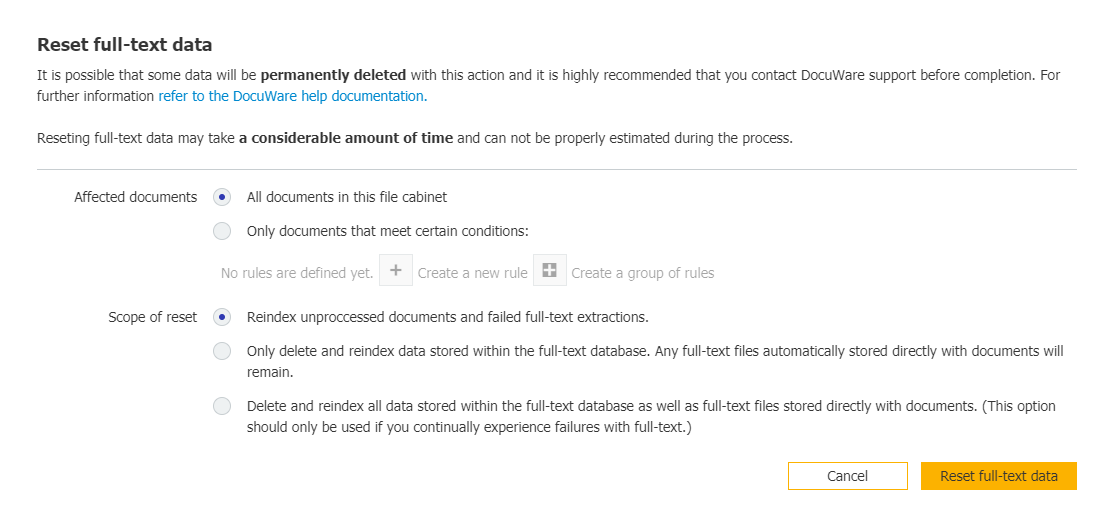
- Under Full-text options, select Reset full-text data:

- Before Fulltext is reset, you have the option to reset all documents or only for particular documents using the custom filter. Once you have set all your parameters, select Reset full-text data:
For Cloud Organizations
Please refer to the following guide on how to reset Fulltext indexes in DocuWare Cloud Organizations;
- Open the configurations page in the DocuWare Web Client and select the File Cabinets plugin. Once you have reached the File Cabinets page, select the file cabinet for which you wish to reset the Fulltext indexes, then select More Options.
Note: Please keep in mind that for larger file cabinets, re-indexing may take a long time.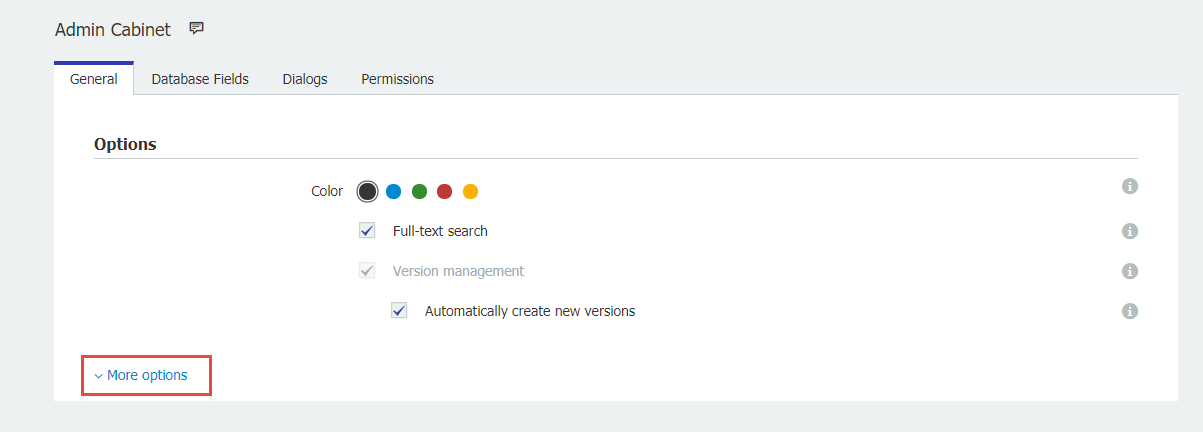
- Define specific rules for which documents in the fulltext search you are attempting to reset. Once you have done so select Reset fulltext data.
KBA is applicable for both Cloud and On-premise Organizations.