


Behavior:
When utilizing DocuWare modules to upload documents to your system you notice:
-Import jobs are started, but files are not uploading.
-The Desktop Service keeps failing to start.
-Documents are uploading slower than expected.
Solution:
This behavior may occur due to issues with the Jobs folders, located in C:\ProgramData\DocuWare\Jobs. The Jobs folder contains information regarding all processed documents from DocuWare Import, Scanner, and Printer. All processed documents are retained according to the JobCleaningAfterDays setting. This setting (<key="JobCleaningAfterDays" value="7" />) determines how long files remain in the job folder before being removed. The default value is seven days, unless this value is changed. You can modify this value by editing the file DocuWare.DesktopService.exe.config located in C:\Program Files (x86)\DocuWare\Desktop\DocuWare.DesktopService.exe.config, but the listed errors above may still occur due the size of the folder itself.

To ensure no issues with the Jobs folder, we will need to recreate the Jobs folder please refer to the following guide:
- Navigate to C:\ProgramData\DocuWare\Jobs and rename the Jobs folder to "JobsOld." This will keep the previous Jobs folder as a backup and allow for a new one to be created. Please keep the following in mind before the Jobs folder has been renamed.
- The Jobs folder cannot be renamed if DocuWare modules are running in the background that require information from this folder. This would include "DocuWare.Desktop" and "DocuWare.WindowsExplorerClient" background processes.
- Before attempting to rename the Jobs folder, force close the DocuWare.Desktop and DocuWare.WindowsExplorerClient apps via the Task Manager
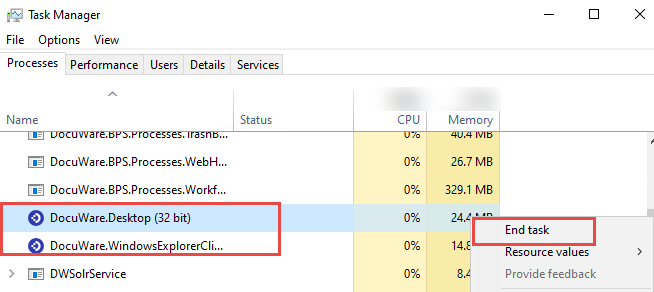
- Service-related apps don't need to be stopped or modified.
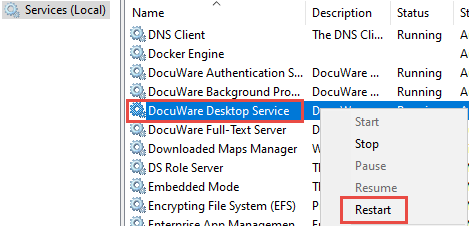
2. Open Services and locate DocuWare Desktop Service. Restart the service, which will prompt DocuWare to create a new Jobs folder.
If you recreate this folder and you are still experiencing issues with DocuWare Desktops Apps, please contact DocuWare Support.
KBA is applicable to both Cloud and On-premise Organizations