


Question:
How do you import and export a workflow in the Web-based Workflow Designer?
Answer:
There are two key differences between the Web-based Workflow Designer and the Desktop app designer in regards to importing and exporting DocuWare workflows.
- Web-based Workflow Designer: Only a single workflow can be imported or exported at a time.
- Desktop App Workflow Designer: All workflows can be exported at once. Workflows can only be imported one at a time.
To Export a workflow:
-
From the main Workflow Designer page, select the Workflow you want to export then select the Export button.
-
Click Export on the prompt, then choose a file location to save your workflow.
To Import a workflow:
-
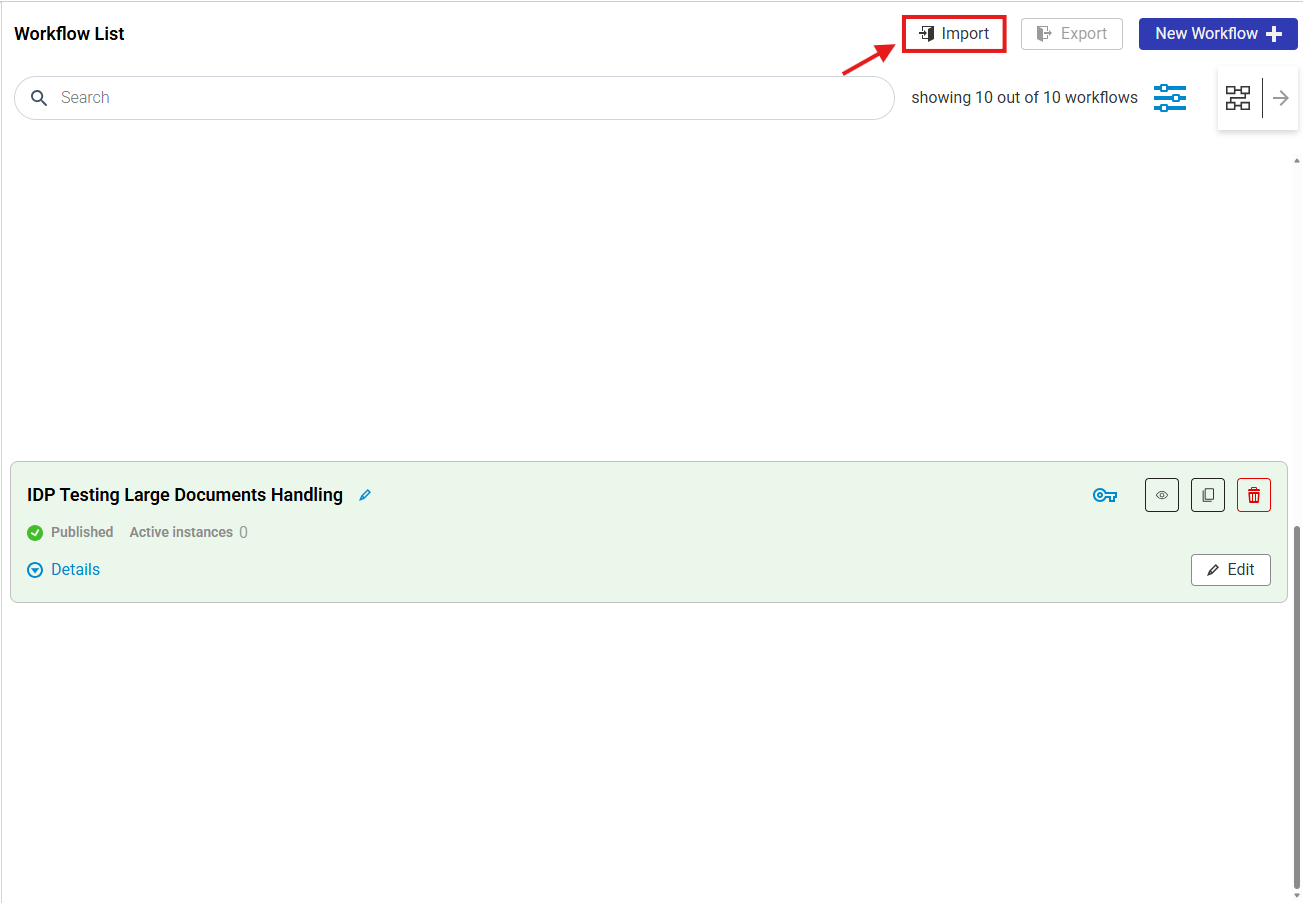
From the main Workflow Designer page, click on the Import button which will open a new window where you can either drag and drop the exported workflow file, or select Browse to locate the file.
-
Once selected, check the box of the workflow you want to import.
-
Enter the DocuWare credentials of the user that will run all the steps of the workflow. After entering a new name for the workflow, then select import.
NOTE: If you are importing a workflow that is already on the system, you will need to provide a unique name to differentiate it from the original workflow. -
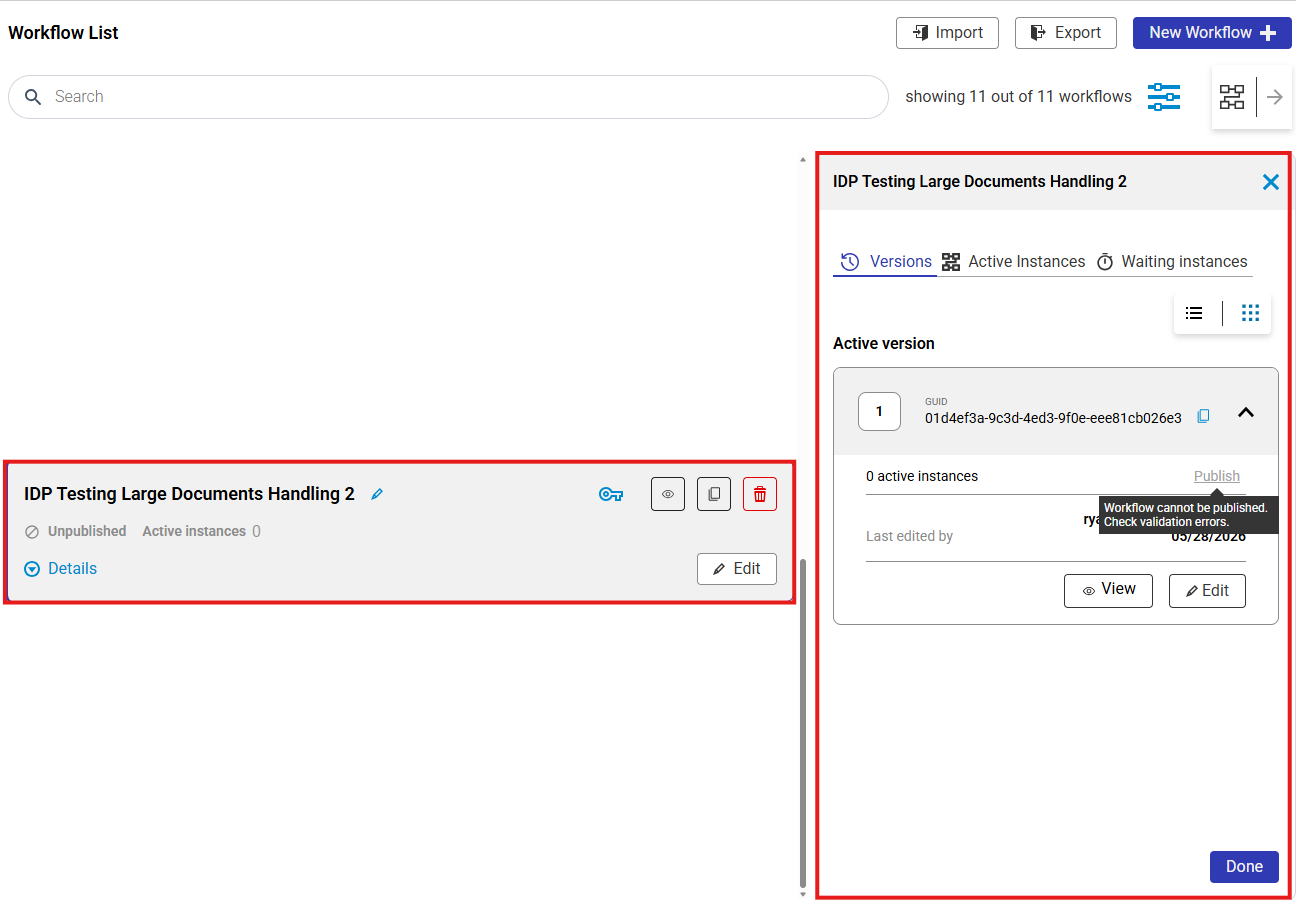
Once the import is complete you will see it listed with the rest of the system's workflows. Before the workflow can be published, you will need to review the workflow steps for any validation errors that need to be corrected.
KBA applicable for both Cloud and On-premise Organizations