


Behavior:
Commencing with DocuWare 7.15, we introduced a new version of Identity Service in the Cloud Organizations.
This new Identity Service uses different URLs, i.e. it is called by a different name than the old one. Customers using single sign-on (SSO) need to add a second callback URL in their SSO configuration to adapt.
Which Identity Providers Are Affected?
The following cloud-based identity providers are affected:
- Microsoft Entra ID
- Microsoft ADFS
- OpenID Connect (OIDC) compatible identity providers
What do Administrators Need to Do?
To ensure SSO continues to work before and after the update to DocuWare version 7.15, administrators must add the new callback URL to their identity provider's list of accepted callback URLs prior to the update. Both the old and the new callback URL should be present during the transition period.
Step-by-Step Instructions
Step 1 – Locate the New Callback URL
1. Log in to your DocuWare Cloud organization as an administrator.
2. Navigate to the Configurations page from the dropdown under the username. 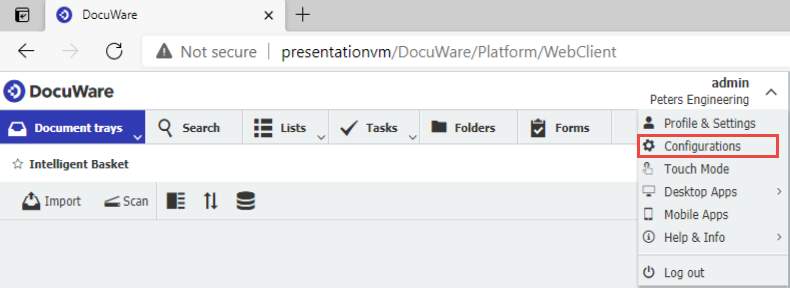
3. On the Configurations page, navigate to and click the Security plugin. 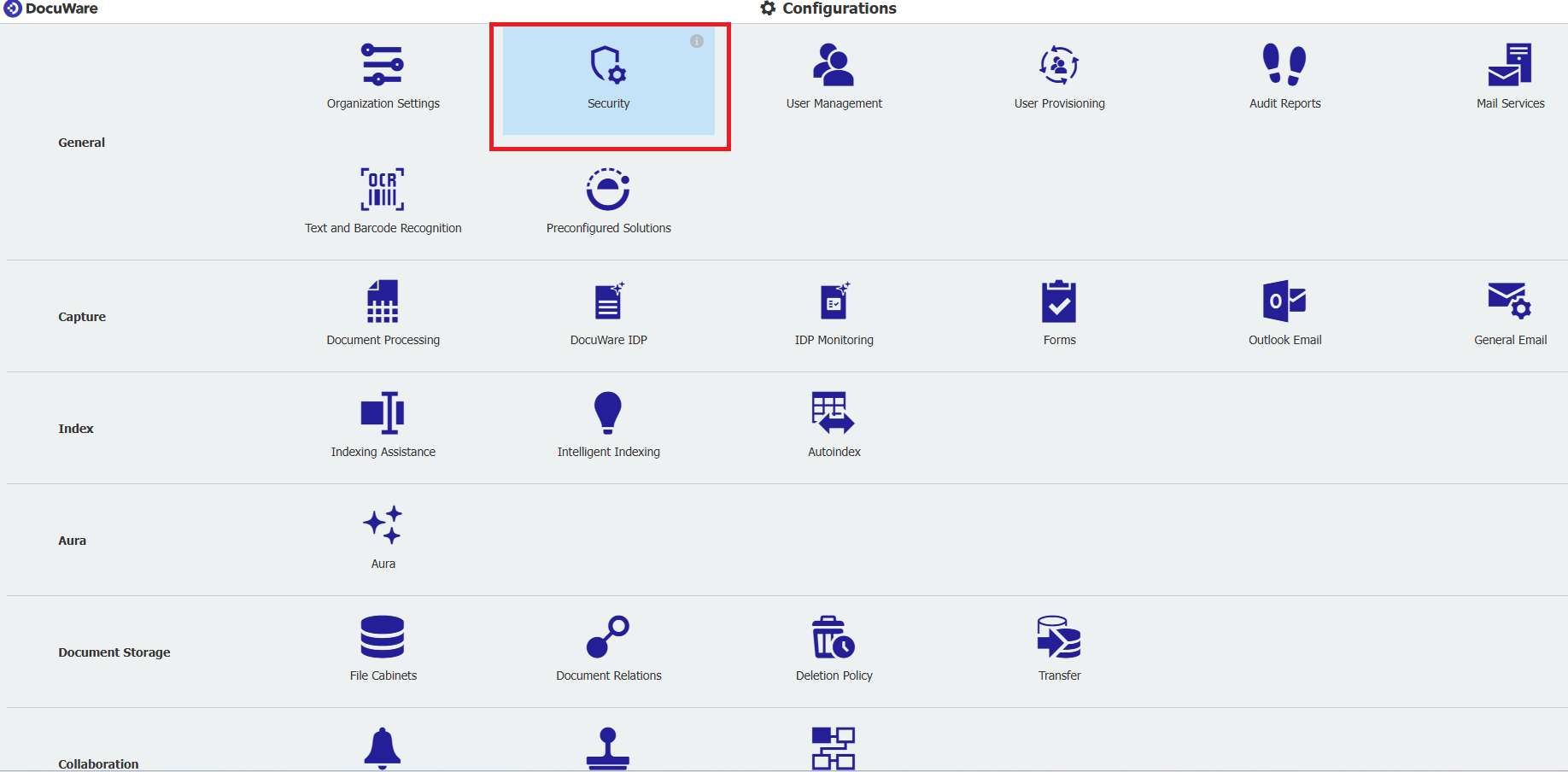
4. Click on Single sign-on (SSO).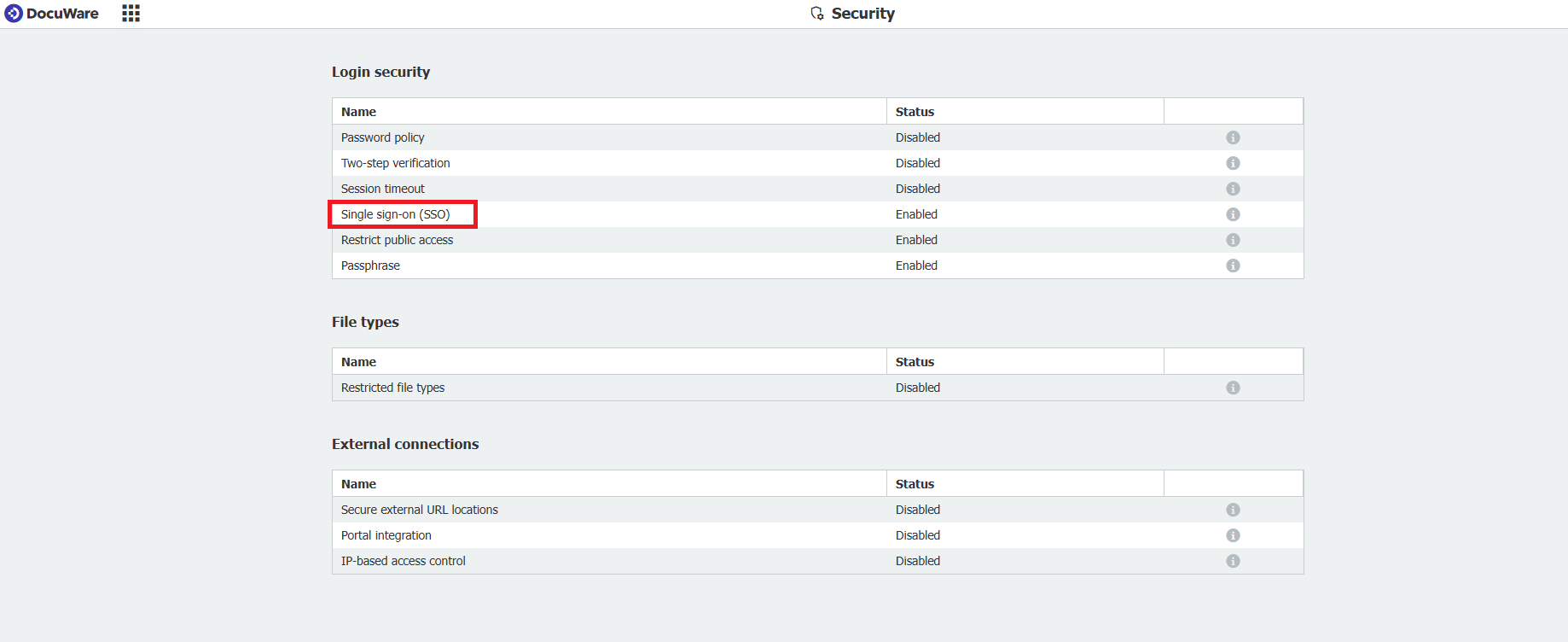
5. Locate the new callback URL displayed in the configuration dialog.
Note: DocuWare has updated the SSO Configuration page in 7.14 Cloud Organizations.
The new callback URL is now displayed within the configuration dialog.
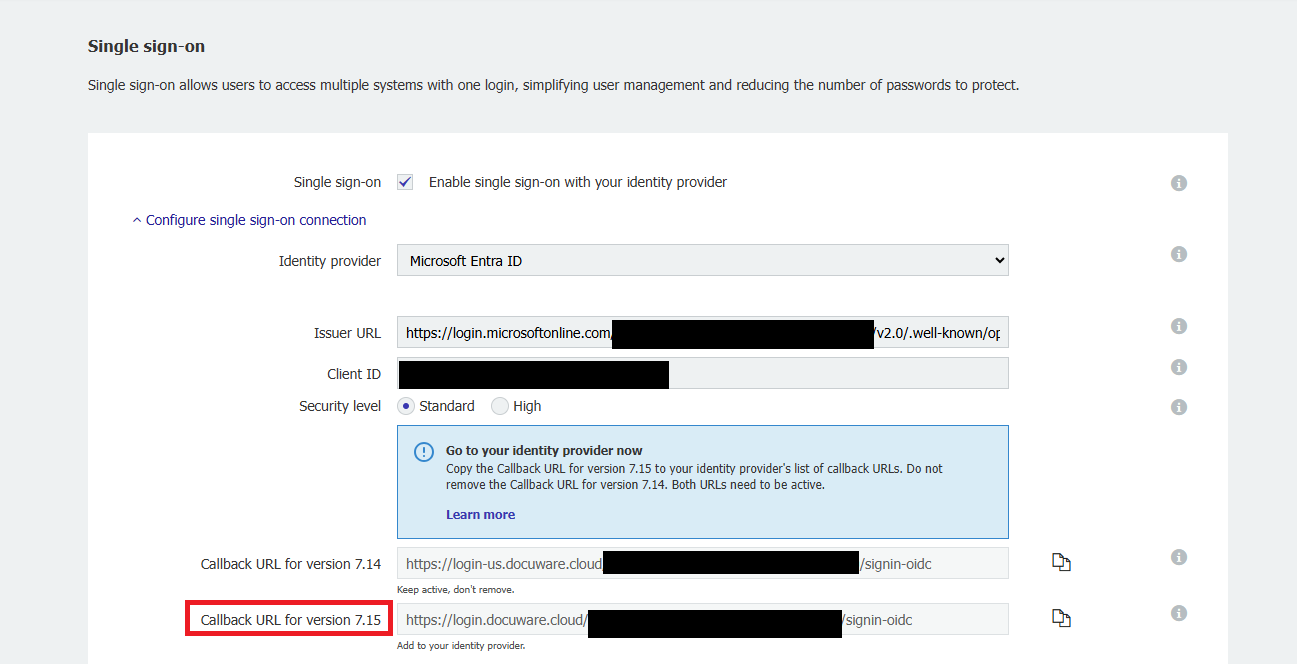
A Learn More link is available in the dialog for additional guidance: 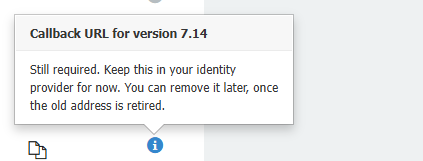
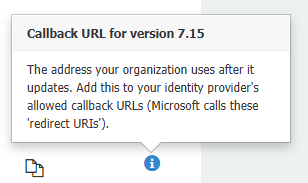
6. Next, copy the new callback URL.
Step 2 – Add the New Callback URL to Your Identity Provider
Note: Step-by-step instructions cannot be provided for all OIDC-based identity providers, as each one may differ in its configuration process and user interface. We recommend consulting your identity provider's documentation for guidance.
Log in to your identity provider's admin portal and follow the appropriate instructions below:
Microsoft Entra ID (formerly Azure AD)
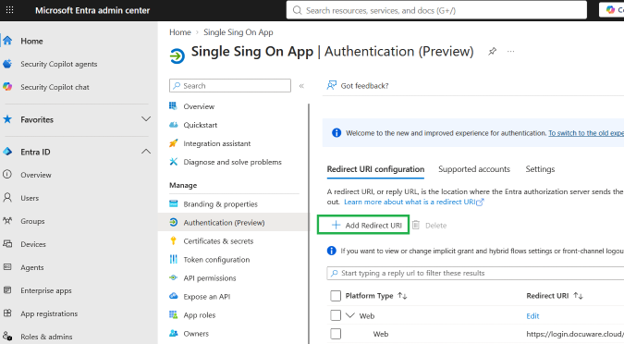
1. Open Entra ID from the Azure portal/ Microsoft Entra admin center. Find your existing app registration in Microsoft Entra ID.
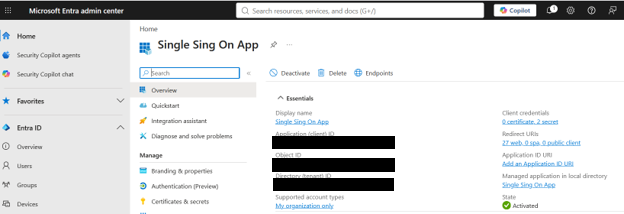
2. Click on Redirect URIs.
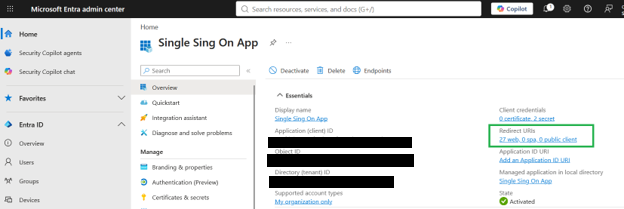
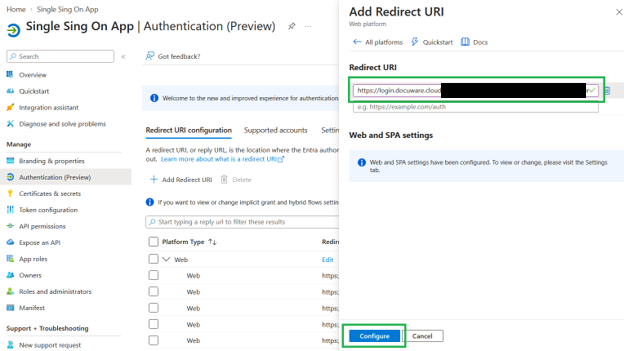
3. Click on Add Redirect URI and choose Web.
4. Paste the URL from DocuWare (from Step 1) and click Configure.
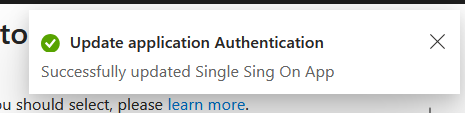
5. You should get a successful message.
What If the Update Has Already Occurred and SSO Is Broken?
If the organization has already been updated to DocuWare 7.15 and SSO is not working, the administrator can resolve the issue immediately by following Step 2 above and adding the new callback URL to their identity provider. Once saved, SSO login should be restored.
Summary:
Need further assistance? Please contact DocuWare Support.
KBA is applicable to Cloud Organizations ONLY!