


When configuring the connection in Connect to Mail, I receive the following message from Microsoft:
Need admin approval
DocuWare Connect To Mail for Graph needs permission to access resources in your organization that only an admin can grant. Please ask an admin to grant permission to this app before you can use it.
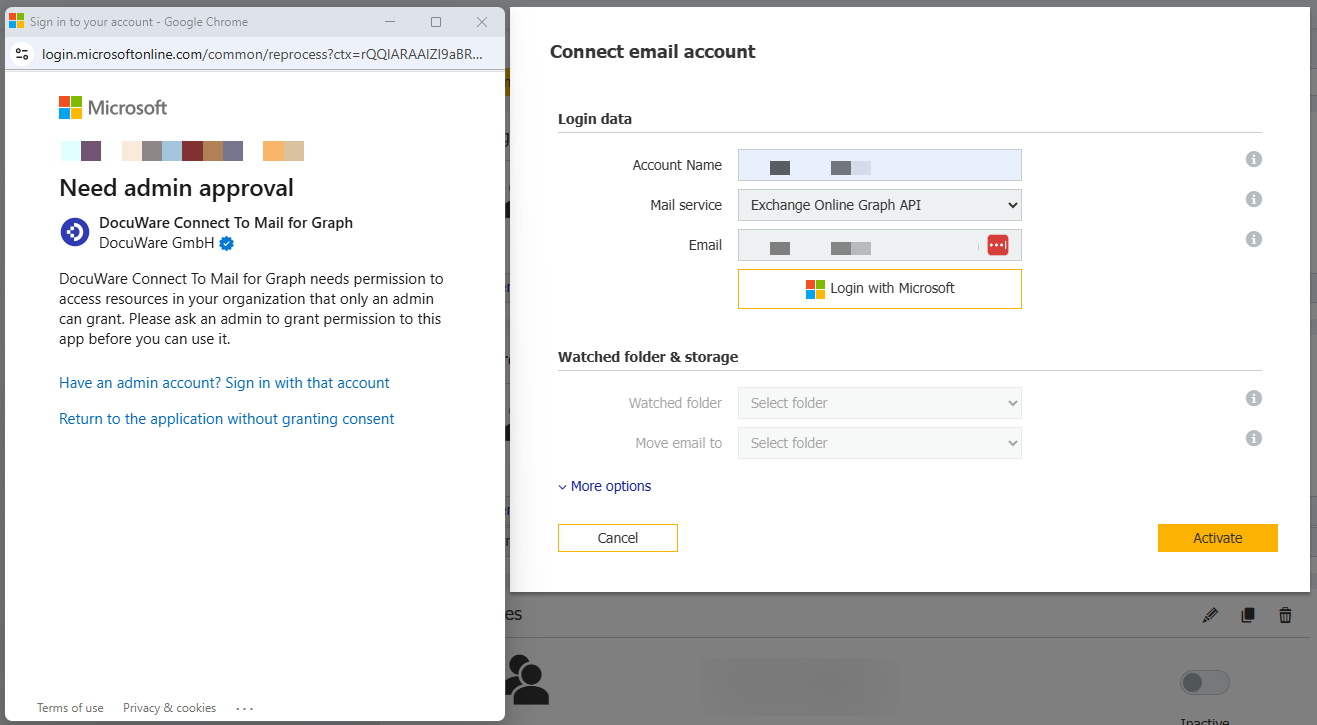
In your organization's Microsoft tenant, users are not allowed to grant applications access to your organization's data.
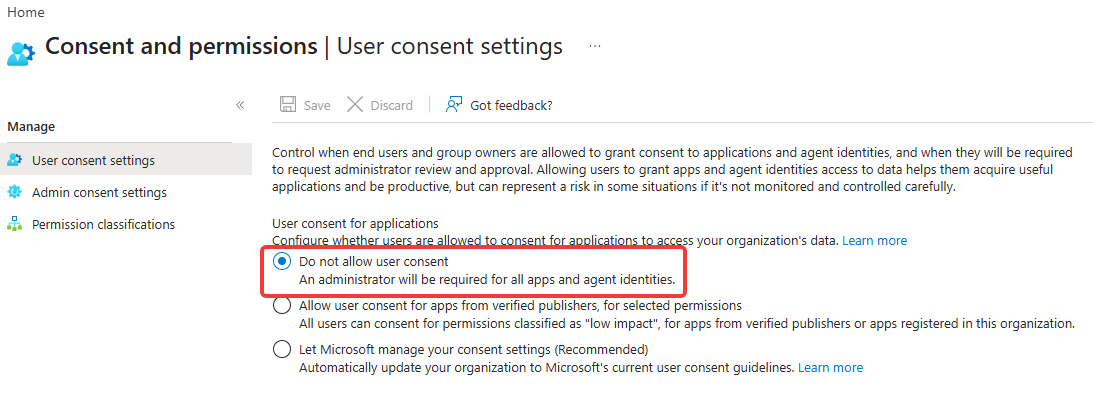
There are two options to resolve this issue:
-
You can now either change this specific setting by going to the Microsoft EntraID Admin Center and navigating to Enterprise applications -> Consent and permissions -> User consent settings.
There, change the setting from “Do not allow user consent” to “Let Microsoft manage your consent settings” and save the change. After a short wait for all changes to be replicated across the tenant, the new connection attempt will work.
-
If you do not wish to implement this far-reaching change, you can enable the “Admin consent request” feature instead. Applications that request access to your organization's data will be assigned the “Pending” status, and you can decide whether to grant or deny access.
-
To do this, go to Enterprise applications -> Consent and permissions -> Admin consent settings in the EntraID Admin Center. Enable the feature Users can request admin consent to apps they are unable to consent to.
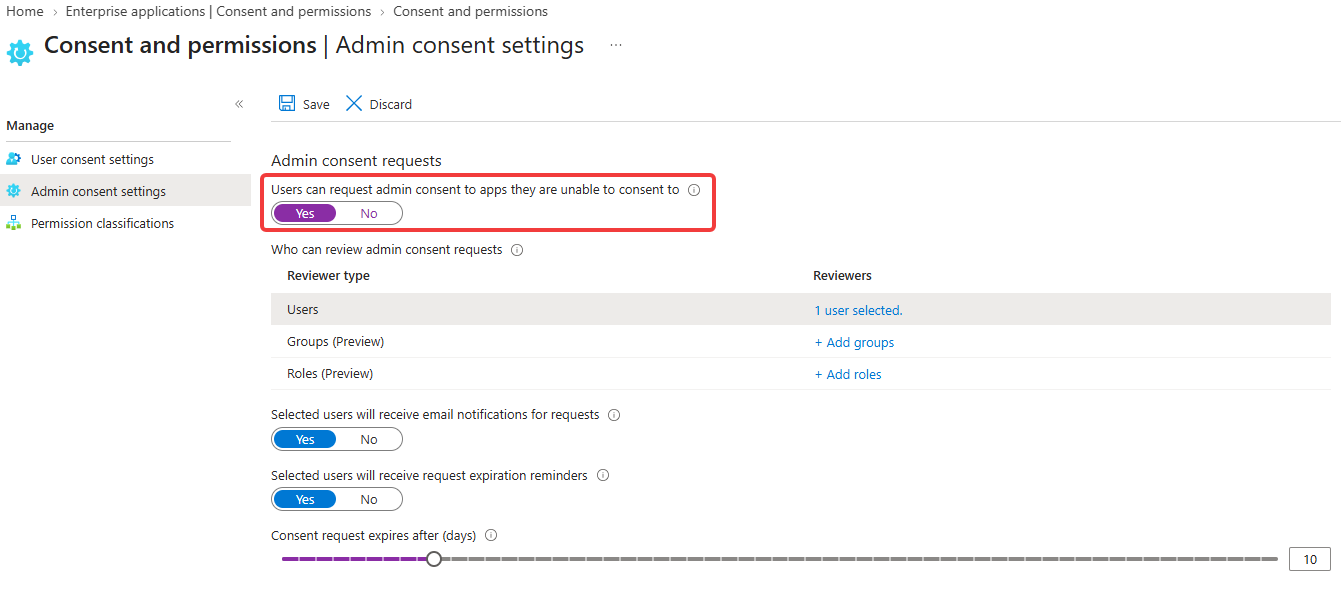 Optionally, you can also restrict which users or user groups can submit a request. Don't forget to save your changes.
- If you now go through the connection configuration for Connect to Mail again, you’ll see the following information screen when attempting to log in with Microsoft:
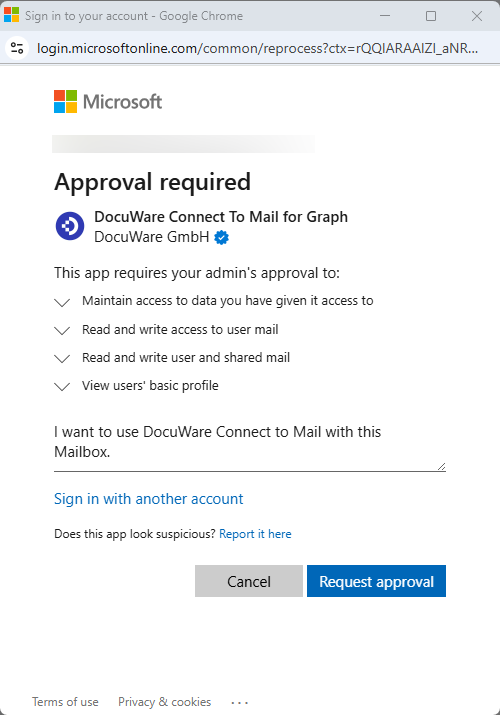
Enter a reason for the request and then click Request approval.
- To view the request, go back to EntraID, stay in the Enterprise Applications menu, and select Admin consent requests. Click the All (Preview) list, select the DocuWare Connect to Mail application, and approve the request by clicking Review permissions and consent in the upper-right corner.
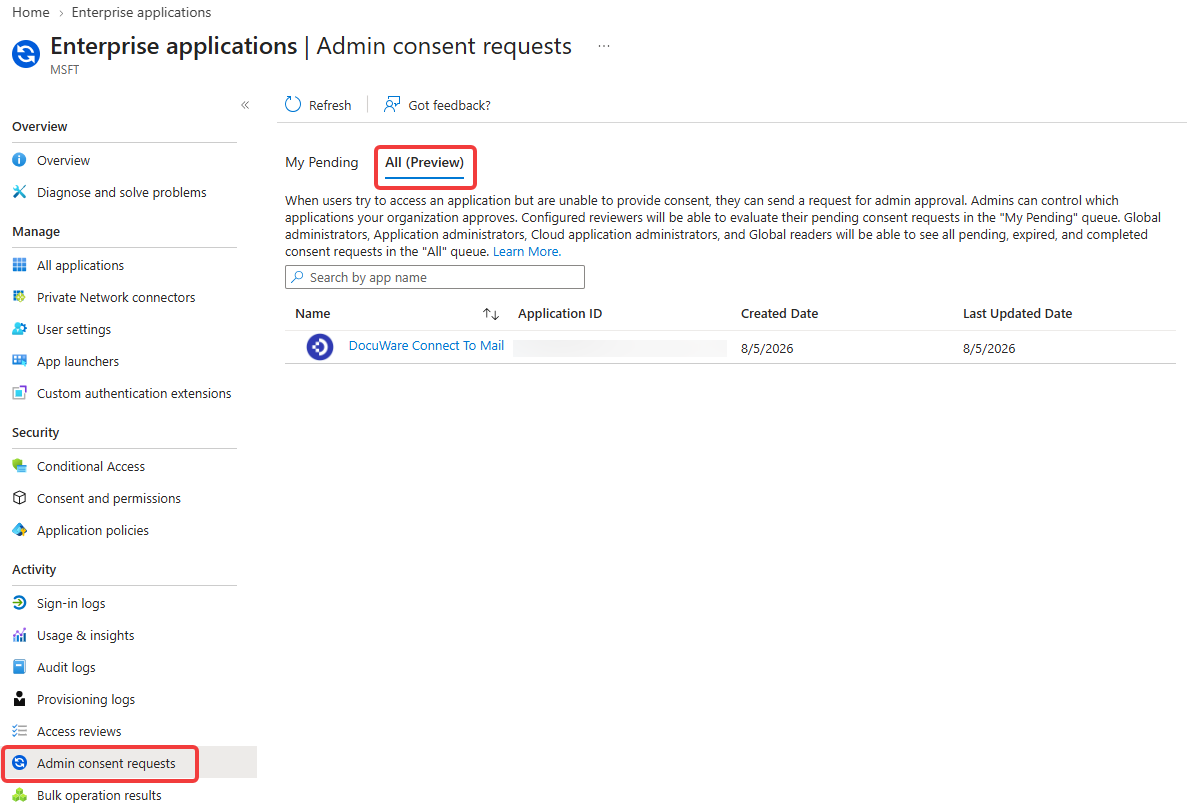
- A pop-up window with the permissions will now appear. Select Accept here.
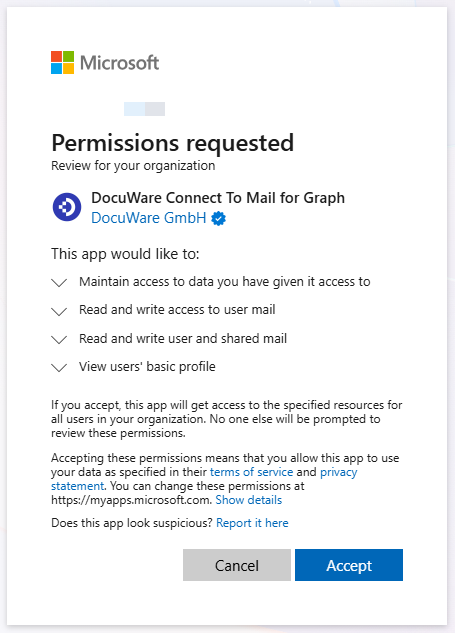
- You can now return to the DocuWare WebClient and recreate the connection configuration or click Login with Microsoft again. The connection should now work successfully and display the mailbox folders.
-
If you would like to use Connect to Mail with Office 365 not with the DocuWare hosted mail service “Exchange Online Graph API,” but with your own application, please use KBA-38086 to create the application.
KBA is applicable to both Cloud and On-premise systems.